
Category: Google Search | Publisher SEO | Technical SEO | WordPress
Read time: 8 min
Table of Contents
- What Google’s Preferred Sources Feature Actually Does
- Check Eligibility Before Adding the Button
- Embed vs Deeplink — Which One to Use
- How to Add the Standard Preferred Sources Button
- Light and Dark Theme Options
- Using the Deeplink When You Cannot Add JavaScript
- How to Add the Button to WordPress — Full Widget Code
- Track Preferred Sources Button Clicks in GA4
- How Preferred Sources Connects to AI Overviews
- Bottom Line
Google’s Preferred Sources feature — which lets users select publications they want to see more of in Top Stories, AI Overviews, and AI Mode — has now reached 345,000 users globally and is expanding. For publishers, adding the Preferred Sources button to their website is one of the most direct ways to build a returning audience in Google Search without depending on algorithm changes.
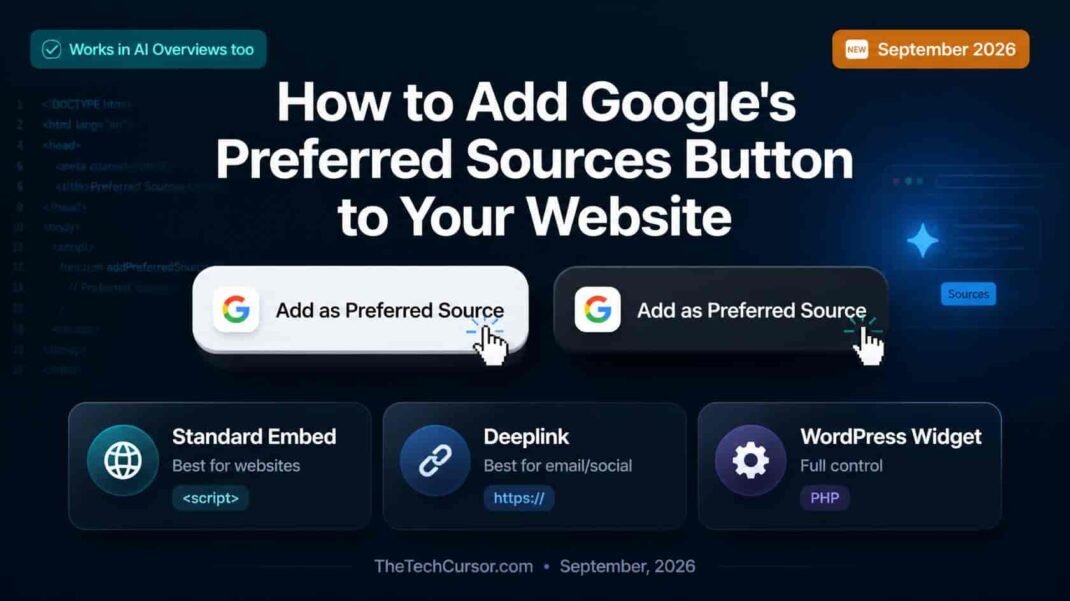
This complete guide shows you exactly how to implement the button — the standard embed, the deeplink alternative, and a full WordPress widget with light and dark themes — plus how to track clicks in GA4.
1. What Google’s Preferred Sources Feature Actually Does
Before implementing the button, it is worth understanding precisely what the feature does — and what it does not do.
(cite index=”34-1″>Preferred Sources affects what an individual Google user sees after selecting your publication. It does not improve your site’s rankings for everyone or guarantee that your articles will appear in Top Stories.</cite>
According to Google’s documentation, Preferred Sources is available globally for Top Stories in all languages where Google Search is available. Furthermore, preferred sources can be highlighted in AI Overviews and AI Mode where those experiences are available.
The SEO benefit is specific: it increases repeat visibility among readers who explicitly choose your publication. That gives publishers a practical way to build a returning audience in Top Stories and AI Overviews — without relying on algorithmic ranking changes to maintain visibility.
As covered in TheTechCursor’s article on Top Stories now appearing inside AI Overviews, the Preferred Sources feature was designed specifically to address publisher concerns about visibility in AI-generated search responses. When a user designates your publication as a preferred source, your content receives highlighted placement within their AI Overviews and AI Mode responses — making this one of the most direct publisher-side tools for AI search visibility available.
2. Check Eligibility Before Adding the Button
Before implementing the button, verify that your publication is eligible for Preferred Sources.
Search for your publication in Google’s source preferences tool at google.com/preferences/source. If your publication does not appear there, adding the button will not resolve the eligibility issue — and users who click it will have a poor experience.
Domain format matters:
Google supports domains and subdomains as valid targets:
example.comnews.example.com
Subdirectories are not valid targets:
example.com/blog
If your publication lives on a subdomain, use that subdomain rather than assuming the root domain is interchangeable. Furthermore, if your publication uses a subdirectory structure rather than a dedicated domain or subdomain, you may need to discuss changes to the domain architecture with your development team before the Preferred Sources button works correctly.
3. Embed vs Deeplink — Which One to Use
Google provides two implementation options. Understanding the differences in user experience between them helps you choose the right one for your situation.
The Standard Embed (recommended for websites):
The embedded button uses JavaScript to open a publication-specific confirmation page. When a reader clicks the button, Google identifies your publication automatically — the reader only needs to tap “Add” and Google returns them to the article they were reading. It is a single-action flow after the initial click.
The Deeplink (recommended for email and social):
The deeplink is an ordinary URL that opens Google’s general source preferences page with your publication’s domain pre-filled in the search field. However, the reader still needs to manually select your publication’s checkbox — an extra step compared to the embed. Furthermore, Google does not automatically return them to the article after completing the selection.
The practical conclusion: Use the standard embed on your website whenever possible. The deeplink still makes sense in email newsletters, social media posts, or any CMS environment where JavaScript cannot be added.
4. How to Add the Standard Preferred Sources Button
The standard embed requires two pieces of code — one script tag loaded once per page, and one container element placed where you want the button to appear.
Step 1: Load the library
Add this script tag to your page’s <head> section. Load it once from your application shell, theme, or a small plugin:
<script async src="https://news.google.com/swg/js/v1/publisher.js"></script>Step 2: Place the button container
Add this <div> wherever you want the button to appear — article footer, sidebar, or header:
<div google-add-preferred-source-btn></div>The library detects the attribute automatically and renders the button. You do not need to hard-code your publication’s domain in the standard button — Google identifies it from the page.
5. Light and Dark Theme Options
The standard button is available in two themes. The light theme is the default. For sites with dark backgrounds, add the data-theme attribute:
Light theme (default):
<div google-add-preferred-source-btn></div>Dark theme:
<div google-add-preferred-source-btn data-theme="dark"></div>Language override (optional):
The button uses the reader’s browser language by default. If a specific page requires a particular supported language, add the data-lang attribute:
<div google-add-preferred-source-btn data-lang="en"></div>This override is rarely needed — most publishers should allow the automatic browser language detection to handle localization.
6. Using the Deeplink When You Cannot Add JavaScript
When JavaScript cannot be added to your environment — email newsletters, some CMS platforms, social media posts — use the deeplink instead.
Basic deeplink format:
https://www.google.com/preferences/source?q=yourdomain.comReplace yourdomain.com with your actual publication domain or subdomain.
As an HTML link:
<a href="https://www.google.com/preferences/source?q=yourdomain.com">
  Add us as a Preferred Source on Google
</a>
The deeplink works in any context that supports a standard URL — email, social posts, page content, or promotional materials. Remember that users need to manually select your publication’s checkbox on the resulting page, which creates one additional step compared to the embed.
7. How to Add the Button to WordPress — Full Widget Code
For WordPress publishers, the following code creates a widget that can be added to any widget area — sidebar, footer, or article body. The widget includes settings for light or dark theme and left, center, or right alignment.
Add this code to a custom plugin or your child theme’s functions.php file:
class Site_Preferred_Sources_Widget extends WP_Widget {
    public function __construct() {
        parent::__construct(
            'site_preferred_sources',
            'Google Preferred Sources',
            array( 'description' => 'Displays the Google Preferred Sources button.' )
        );
    }

    private function get_alignment( $value ) {
        return in_array( $value, array( 'left', 'center', 'right' ), true )
            ? $value
            : 'center';
    }

    public function widget( $args, $instance ) {
        $theme = isset( $instance['theme'] ) && 'dark' === $instance['theme']
            ? 'dark'
            : 'light';
        $alignment = $this->get_alignment(
            isset( $instance['alignment'] ) ? $instance['alignment'] : 'center'
        );
        $justify_content = array(
            'left'   => 'flex-start',
            'center' => 'center',
            'right'  => 'flex-end',
        );

        echo $args['before_widget'];
        echo '<div style="display:flex;width:100%;justify-content:'
            . esc_attr( $justify_content[ $alignment ] )
            . ';">';
        echo '<div google-add-preferred-source-btn';

        if ( 'dark' === $theme ) {
            echo ' data-theme="dark"';
        }

        echo '></div>';
        echo '</div>';
        echo $args['after_widget'];
    }

    public function form( $instance ) {
        $theme = isset( $instance['theme'] ) && 'dark' === $instance['theme']
            ? 'dark'
            : 'light';
        $alignment = $this->get_alignment(
            isset( $instance['alignment'] ) ? $instance['alignment'] : 'center'
        );
        ?>
        <p>
            <label for="<?php echo esc_attr( $this->get_field_id( 'theme' ) ); ?>">
                Color theme:
            </label>
            <select class="widefat"
                id="<?php echo esc_attr( $this->get_field_id( 'theme' ) ); ?>"
                name="<?php echo esc_attr( $this->get_field_name( 'theme' ) ); ?>">
                <option value="light" <?php selected( $theme, 'light' ); ?>>Light</option>
                <option value="dark" <?php selected( $theme, 'dark' ); ?>>Dark</option>
            </select>
        </p>
        <p>
            <label for="<?php echo esc_attr( $this->get_field_id( 'alignment' ) ); ?>">
                Alignment:
            </label>
            <select class="widefat"
                id="<?php echo esc_attr( $this->get_field_id( 'alignment' ) ); ?>"
                name="<?php echo esc_attr( $this->get_field_name( 'alignment' ) ); ?>">
                <option value="left" <?php selected( $alignment, 'left' ); ?>>Left</option>
                <option value="center" <?php selected( $alignment, 'center' ); ?>>Center</option>
                <option value="right" <?php selected( $alignment, 'right' ); ?>>Right</option>
            </select>
        </p>
        <?php
    }

    public function update( $new_instance, $old_instance ) {
        $instance = array();
        $instance['theme'] = isset( $new_instance['theme'] )
            && 'dark' === $new_instance['theme']
            ? 'dark'
            : 'light';
        $instance['alignment'] = $this->get_alignment(
            isset( $new_instance['alignment'] )
                ? sanitize_key( $new_instance['alignment'] )
                : 'center'
        );
        return $instance;
    }
}

function site_register_preferred_sources_widget() {
    register_widget( 'Site_Preferred_Sources_Widget' );
}
add_action( 'widgets_init', 'site_register_preferred_sources_widget' );

function site_preferred_sources_widget_script() {
    if ( ! is_active_widget( false, false, 'site_preferred_sources', true ) ) {
        return;
    }
    wp_enqueue_script(
        'google-preferred-sources',
        'https://news.google.com/swg/js/v1/publisher.js',
        array(),
        null,
        array( 'strategy' => 'async', 'in_footer' => true )
    );
}
add_action( 'wp_enqueue_scripts', 'site_preferred_sources_widget_script' );
After adding the code:
- Go to Appearance → Widgets in the WordPress admin
- Find “Google Preferred Sources” in the available widgets list
- Drag it to your preferred widget area (sidebar, footer, or article area)
- Select your preferred Color theme (Light or Dark)
- Select Alignment (Left, Center, or Right)
- Click Save
WordPress loads the Google library once even if the widget is placed in multiple widget areas — no duplicate script loading.
8. Track Preferred Sources Button Clicks in GA4
Knowing how many readers are clicking your Preferred Sources button helps you measure its effectiveness and report on it as a KPI.
The tracking works via a delegated click listener because Google renders the badge dynamically after the page loads. Add this tracking code alongside your widget implementation:
If using Google Tag Manager:
The script pushes an event to the dataLayer:
window.dataLayer.push({ event: 'preferred_source_button_click' });In GTM, create a Custom Event trigger named preferred_source_button_click and use it to fire a GA4 Event tag with the same event name.
If using gtag.js directly (without GTM):
window.gtag('event', 'preferred_source_button_click');Important note: This event records when a reader clicks the button and begins the Preferred Sources flow. It does not confirm that the reader completed the selection in Google. However, it gives you a reliable measure of button engagement — and you can use it as a conversion goal in GA4 reporting.
Use GTM Preview or GA4 DebugView to confirm the event fires correctly before publishing. As covered in TheTechCursor’s article on Google Tag Manager’s unified no-code event tracking, button click tracking like this is now achievable without developer support in many environments — though the Preferred Sources button specifically benefits from the custom implementation above due to its dynamic rendering.
9. How Preferred Sources Connects to AI Overviews
The Preferred Sources feature has a specific and growing connection to AI search visibility — making it more strategically important than it might initially appear.
When a user designates your publication as a preferred source, your content receives highlighted placement in their AI Overviews and AI Mode responses — not just in Top Stories. As covered in TheTechCursor’s article on Top Stories appearing inside AI Overviews, Google introduced the Preferred Sources carousel inside AI Overviews specifically to address publisher concerns about visibility in AI-generated search responses.
Furthermore, as covered in TheTechCursor’s analysis of AI brand usage vs citation in AI search, the distinction between appearing in AI responses and being explicitly cited as a preferred source matters. The Preferred Sources designation creates a direct, user-controlled mechanism for ensuring your content surfaces prominently in that user’s AI search experience — complementing the entity authority and topical depth signals that influence citation probability for all users.
(cite index=”34-1″>The SEO benefit is not a universal ranking boost. It is the chance to earn more visibility with the readers who already value your work.</cite>
For TheTechCursor specifically — and for any digital media publication targeting SEO professionals and digital marketers — the Preferred Sources button is worth implementing immediately. The readers most likely to use it are exactly the kind of engaged, returning audience members whose consistent engagement sends the strongest quality signals to Google’s ranking systems.
10. Bottom Line
Google’s Preferred Sources button is one of the most straightforward publisher-side implementations available for improving visibility in Google Search, and AI features simultaneously. The standard embed is a two-line code addition for non-WordPress sites. The WordPress widget provides full light/dark theme and alignment control with GA4 tracking built in.
Implementation checklist:
- Verify your domain appears in
google.com/preferences/source - Confirm domain format — use a subdomain if applicable, not a subdirectory
- Add the script tag to your
<head> - Place the button container in article footers, sidebars, or headers
- Choose light or dark theme to match your site design
- For WordPress: add the widget code and configure in Appearance → Widgets
- Set up GA4 tracking to measure button engagement
- Promote the button in your newsletter and social channels using the deeplink
The Preferred Sources button will not change your rankings for all users. However, it gives your most engaged readers a direct mechanism to ensure they keep seeing your content — in Top Stories, AI Overviews, and AI Mode. For publishers building a returning audience in an AI-first search environment, that is a meaningful tool.
Pingback: Google Search Profiles: Now Open at 10,000 Followers - The Tech Cursor
Pingback: More Ways to Connect With the Web: Google AI Mode Updates - The Tech Cursor